
How to Send a Calendar Invite in Gmail and Manage Meeting Invitations
Scheduling meetings has become a routine part of modern professional life. From remote teams to global conferences, professionals rely heavily on digital calendars to manage their schedules. One of the most commonly used platforms for scheduling meetings is Gmail, which integrates directly with Google Calendar.
BLOG
3/11/20263 min read
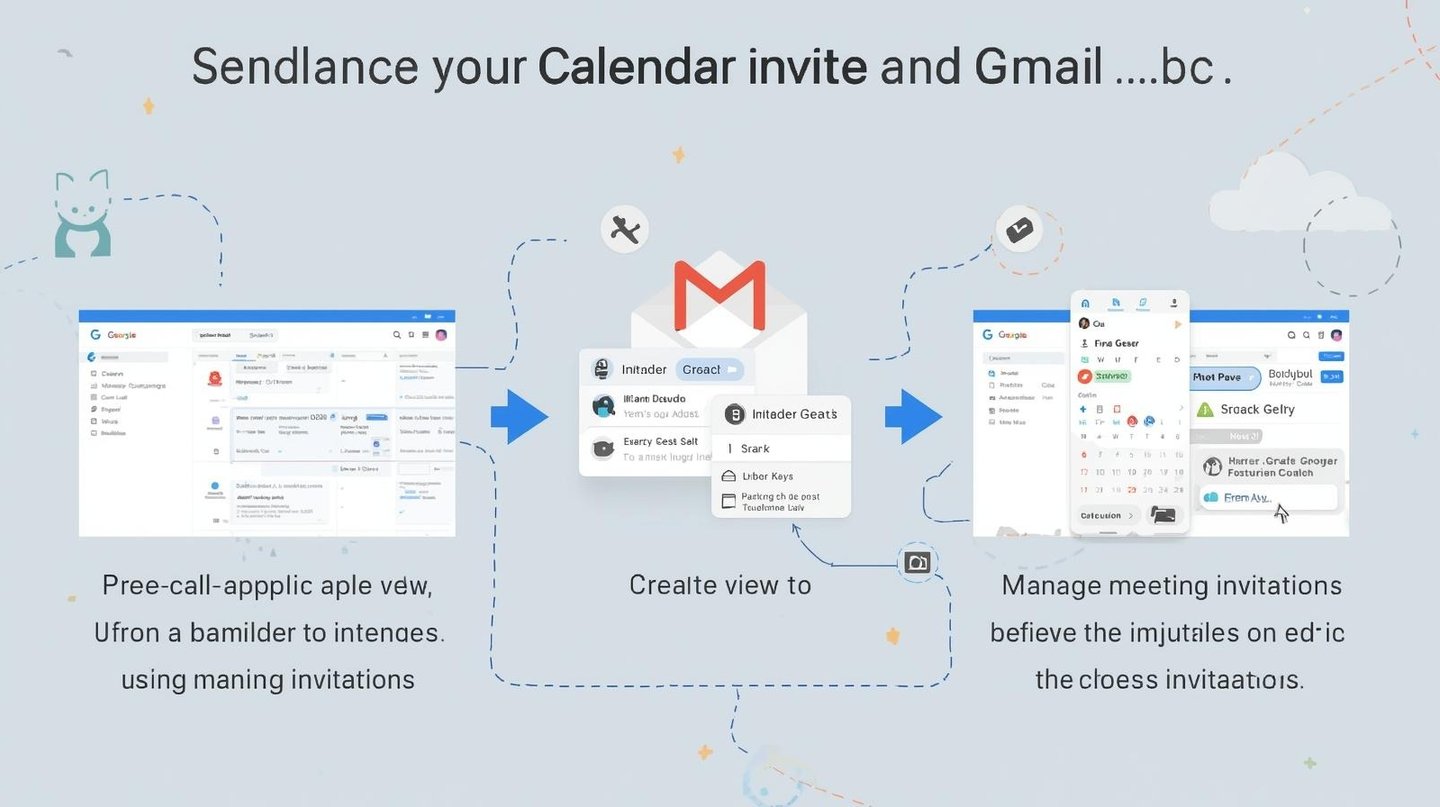
Scheduling meetings has become a routine part of modern professional life. From remote teams to global conferences, professionals rely heavily on digital calendars to manage their schedules. One of the most commonly used platforms for scheduling meetings is Gmail, which integrates directly with Google Calendar.
Learning how to send calendar invite Gmail can help professionals coordinate meetings efficiently and ensure participants receive accurate event details.
In this article, we’ll explain how to send a calendar invite on Gmail, explore how calendar invitations work, and provide useful tips for managing meeting invitations effectively.
Why Calendar Invites Are Important
Before exploring the steps, it’s helpful to understand why calendar invitations are widely used in professional environments.
A digital invitation helps participants quickly invite calendar events into their personal schedules. Instead of manually entering meeting details, attendees can simply accept the invitation and have the event automatically added to their calendar.
This simplifies communication and ensures everyone stays informed about upcoming meetings.
How to Send a Calendar Invite in Gmail
If you want to schedule a meeting using Gmail, you will typically use the integrated Google Calendar feature.
Here is a simple process explaining how to send calendar invite Gmail.
Step 1: Open Google Calendar
From your Gmail account, access Google Calendar by clicking the calendar icon in the application menu.
Step 2: Create a New Event
Click the Create or New Event button. This opens a form where you can add meeting details.
Step 3: Add Event Details
Enter the following information:
Meeting title
Date and time
Meeting description
Video meeting link or location
These details help participants understand the purpose of the meeting.
Step 4: Add Guests
In the guest section, add the email addresses of the people you want to invite.
This is the step where you effectively send calendar invite Gmail to participants.
Step 5: Save and Send
Once the event is created, save it and confirm that invitations should be sent to the added participants.
After sending, attendees receive the invitation in their inbox.
Understanding Calendar Invitations
A calendar invite works as both a meeting request and a scheduling tool. When participants receive the invitation, they can choose to:
Accept the invitation
Decline the invitation
Mark it as tentative
Once accepted, the event appears in their calendar automatically.
Learning how to send calendar invite correctly ensures that participants receive accurate scheduling information and reminders.
Best Practices for Sending Meeting Invitations
When organizing meetings, following best practices helps ensure participants remain engaged and prepared.
Provide a Clear Meeting Title
The title should describe the meeting purpose clearly so participants can easily recognize the event.
Add a Description
Include important information such as:
discussion topics
preparation materials
meeting objectives
This ensures participants understand what will be discussed.
Include Meeting Links
For virtual meetings, always include the video conferencing link directly in the invitation.
Send Invitations at the Right Time
Sending invitations well in advance gives participants time to prepare and avoid scheduling conflicts.
Managing Multiple Meeting Invitations
Professionals who organize many meetings often need to send meeting invites regularly. Keeping track of invitations can become challenging if meetings are not structured properly.
Here are some tips to manage them effectively:
Use clear meeting titles
Group related meetings under similar themes
Review your calendar regularly
Update invitations if meeting details change
These practices help ensure participants stay informed about schedule changes.
Common Issues When Sending Calendar Invites
Even though calendar systems are easy to use, some problems can occur.
Invitations Not Received
Sometimes invitations may be filtered into spam folders or delayed by email servers.
Incorrect Time Zones
When scheduling meetings with participants in different regions, incorrect time zones can cause confusion.
Missing Meeting Links
For virtual meetings, forgetting to include the video link is a common mistake.
Checking event details before sending invitations helps prevent these issues.
The Role of Calendar Invites in Modern Work
Digital calendars have become an essential tool for professionals across industries. Whether scheduling internal team discussions or coordinating international events, calendar invitations simplify the entire process.
Understanding how to send calendar invite on Gmail helps professionals manage their schedules more efficiently and communicate meeting details clearly.
Conclusion
Calendar invitations have become a standard method for organizing meetings in both professional and personal environments. By learning how to send calendar invite Gmail, professionals can easily schedule discussions, coordinate teams, and keep participants informed.
Using calendar invites effectively improves organization, reduces scheduling errors, and ensures meetings run smoothly. With proper planning and clear communication, calendar invitations can become one of the most powerful tools for managing modern work schedules.
MassCalendar.in
Send Bulk & Mass Calendar Invites Instantly
CONTACT
Meetings
+44 (0) 203 916 5117
© 2025. All rights reserved.
Help?